
Productivity
Sprints & Targets
Build momentum with timed writing sprints and stay accountable with daily or weekly word count targets.

Sprints
Writing Sprints
Writing sprints are timed writing sessions designed to build momentum and beat writer's block. Set a duration, set a word target, and write against the clock.
How to start a sprint
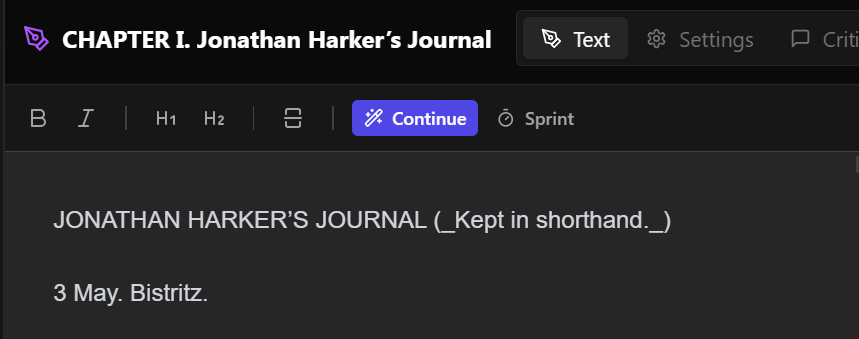
- 1 Open any chapter and click the Sprint button in the chapter toolbar.
- 2 A popover appears where you can configure Duration (1–120 minutes, default 15) and Word target (default 500).
- 3 Click Start Sprint. Your cursor is placed in the editor and the clock begins.
During a sprint
A live HUD bar appears below the toolbar showing:
- A countdown timer with time remaining.
- A progress bar filling toward your word target.
- A live word count (e.g. "237/500 words").
The bar turns amber while in progress and green when you hit your word target. When time runs out, the bar displays "Sprint done! 🎉".
Stopping a sprint
Click the Stop button in the HUD bar or click the Sprint button in the toolbar at any time to end early — no progress is lost from your chapter.
Tips
- Sprints are per-chapter. Switch chapters freely; the sprint tracks words in the chapter where you started it.
- Use short sprints (5–10 min) to push past a blank page, or longer ones (30–60 min) for deep writing sessions.
- Combine sprints with the AI Continuation feature to kick-start a passage, then sprint to keep the momentum going.
Targets
Writing Targets
Writing targets are longer-term goals that track your word output across the entire project over a day or a week. They help you build a consistent writing habit.
How to set a target

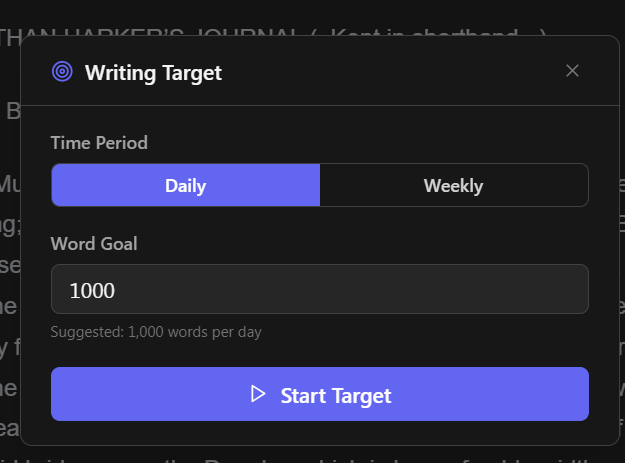
- 1 Click the target (bullseye) icon in the main toolbar.
- 2 Choose a time period: Daily (24-hour countdown) or Weekly (7-day countdown).
- 3 Set your word goal (minimum 50 words, adjustable in increments of 50). Suggested defaults are 1,000 words/day or 5,000 words/week.
- 4 Click Start Target.
Tracking progress
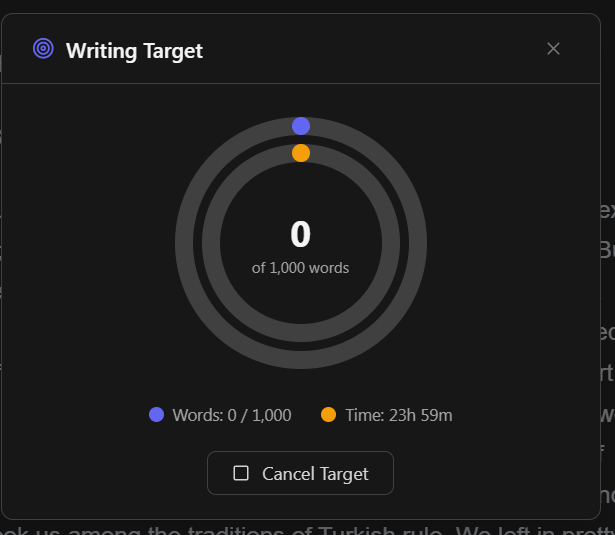
While a target is active, the status bar shows your progress toward the goal. Clicking the target button opens a dual-ring progress graph:
- Outer ring (purple) — words written so far vs. your goal.
- Inner ring (amber) — time elapsed vs. total time remaining.
- The centre displays your current word count and goal.
When you reach your word goal, the dialog shows "🎯 Target achieved!"
Persistence
Writing targets persist across app restarts. If you close Auctor and reopen it, your target and progress are still there. Targets auto-clear when their time period expires (24 hours for daily, 7 days for weekly).
Cancelling a target
Open the target dialog and click Cancel Target to end it early.
Tips
- Writing targets count words across all chapters in your project, so editing any chapter contributes to your goal.
- Pair a weekly target with daily sprints: use the target to stay accountable over the week, and sprints to keep individual sessions focused.
- Start with a modest goal and increase it as you build your routine — consistency matters more than big numbers.